Showing posts with label ccleaner. Show all posts

January 17, 2016

Most needed programs in a laptop


In this article we're gonna see the most needed program in a laptop specially if it's a new one.

These programs are necessary to take care of your laptop.


Ninite


Ninite is one of my favorite programs. It's a website that allows you to select which free software you’d like to install on your PC. It offers you multiple choices. You just have to check all the programs that you want to install and you will receive a single custom.exe file containing all the installations of the programs you’ve chosen (and practically all the programs i'm gonna mention you will find in this website).

With a simple click on the .exe you will install all of them without any other software that usually sneak in during the installation, without toolbars without any issue. It’s simple and wonderful.


Antivirus

My two best antiviruses that I always use one of them are AVG and Malwarebytes Anti-Malware


In the windows Laptops Windows Defender is installed and activated by default to protect our PCs, but this antivirus is not that solid and doesn’t rally protect us from everything that the internet offers for free to out PCs.

AVG Antivirus is for free (you can also activate it by buying a license), it’s one of the best to block and eradicate malwares. It has many advantages and does a great job protection us.

Now concerning MalwareBytes Anti-Malware it’s also for free and you can also buy a license for it if you wish. This program was designed specially to eliminate the cutting-edge threats.

Also I advise you to install with it MalwareBytes Anti-Exploit for more safety.


CCleaner


CCleaner is probably the best tool for cleaning your PC. It gives you the possibility to clean your laptop from all the unwanted and useless files and to clean all the browsers all at once.


VLC Medi Player 


VLC Media Player is one of the best, it can play all the music, videos, podcasts… you want and it supports all the formats you want.


Paint.net


Paint.net is for sure not like photoshop, but this image editor offers you all the things that anyone will need if you’re not a photoshop professional.


antivirus avg best programs best software ccleaner malware malware antimalware ninite paint paint.net vlc windows

December 22, 2015

Free Up Hard Disk Space On Windows


If you’re having problems with your hard disk and you need to free up some hard disk space on window read this article and follow these steps or only the one’s you need.

In case nothing worked for you or have any suggestions leave a comment bellow.


So let’s start the first step:

Disk Cleanup

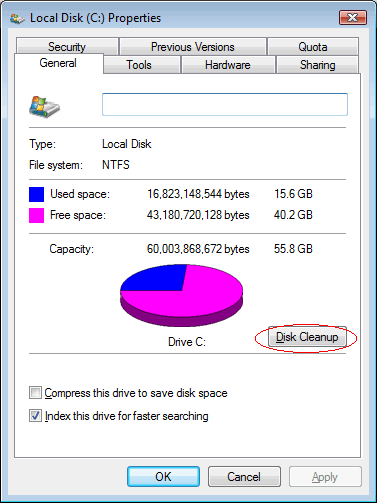
Right-click on one of your hard drives in the Computer window and select Properties.


Click the Disk Cleanup button in the disk properties window.


Select all the files you want to delete and click OK.
NOTE : This includes temporary files, log files, files in your recycle bin, and other unimportant files.


Finally, click the More Options button and use the Clean up button under System Restore and Shadow Copies to delete system restore data.

This button deletes all but the most recent restore point, so ensure your computer is working properly before using it.


Uninstall Space-Hungry Applications


Uninstalling programs will free up so much space. So to do that and to delete all the unused programs just search for “Uninstall programs” in the Start Menu.


If you’re using Windows 10 go to Settings then to System > Apps & features and Uninstall all the programs that you don't need.


Analyze Disk Space


To find out exactly what is using space on your hard drive, you can use a hard disk analysis program. These applications scan your hard drive and display exactly which files and folders are taking up the most space.
There is so many applications that you can use find the one that is more convenient to you, download it and let it scan your hard disk.

After scanning your system, you will have the ability to see exactly which folders, file types, and files are using the most space.
Make sure that you don’t delete any important system files and only delete personal data files.

Clean Temporary Files


1) If you want to use the Command Line for a Quick Cleanup of Windows Temp Files you have to open the command line and enter :


   del /q/f/s %TEMP%\*

NOTE: do not apply this command right after installing updates or new programs that require a reboot. Sometimes these processes use temp files to finish installation.

2) ·      Open Run box by pressing Windows key + R 
          ·    Type %TEMP% and press Enter
     ·         In the Temp directory, press CTRL+A to select all file and folders
     ·         While selected right-click any file/directory and select Delete
      
 3) @echo off
  del /s /q "%userprofile%\cookies\*.*"


           4) deleteprefetch.bat:
 @echo off
 del /f /q %windir%\Prefetch\*.*


     5) You can use Windows Disk Cleanup tool 

     6) You can also use a program to help you with your files like CCleaner for more aggressive temporary and junk file cleaning, which you can download from here.
   
     CCleaner gives you the possibility to clean junk files from a variety of third-party programs (you can clean all your applications, clean all your navigators …) and also it cleans up Windows files that Disk Cleanup won’t touch.


I hope this article was helpful and for any suggestions leave a comment bellow


ccleaner clean hard disque cmd command disque dur disque dur complet disque dur saturé free space on windows full hard disk hard disk libérer de la place disque dur nettoyer disque dur windows


Click if you're interested

Copyright © Everything you need to know ™ is a registered trademark.